How to Check Metadata on a Photo
Learn how to check photo metadata, read EXIF data from JPEG images and screenshots, find GPS location data, and remove metadata from photos using MyGPSTools.
How to Check Metadata on a Photo
I’ll explain how to use the Exif Data Viewer for Photos, GPS Location, and Privacy Checks service.
First, go to the MyGPSTools website and open the Exif Data Viewer section. On this page, you can upload an image using a simple upload form.
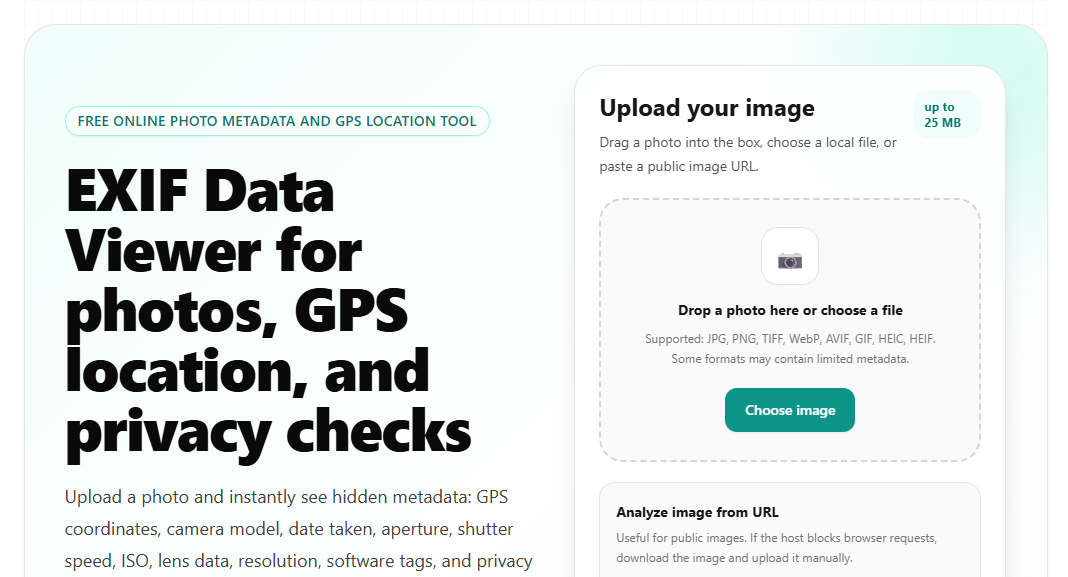
This tool works as a simple JPEG metadata viewer and helps you understand how to check metadata on a photo, how to see photo metadata, and how to read metadata of an image without installing extra software.
How to Upload a Photo and View Metadata
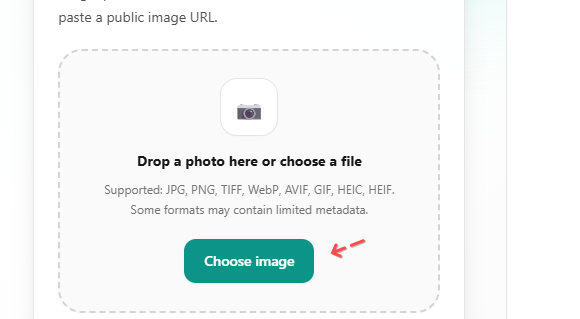
I select Choose Image and upload the photo whose metadata I want to check.
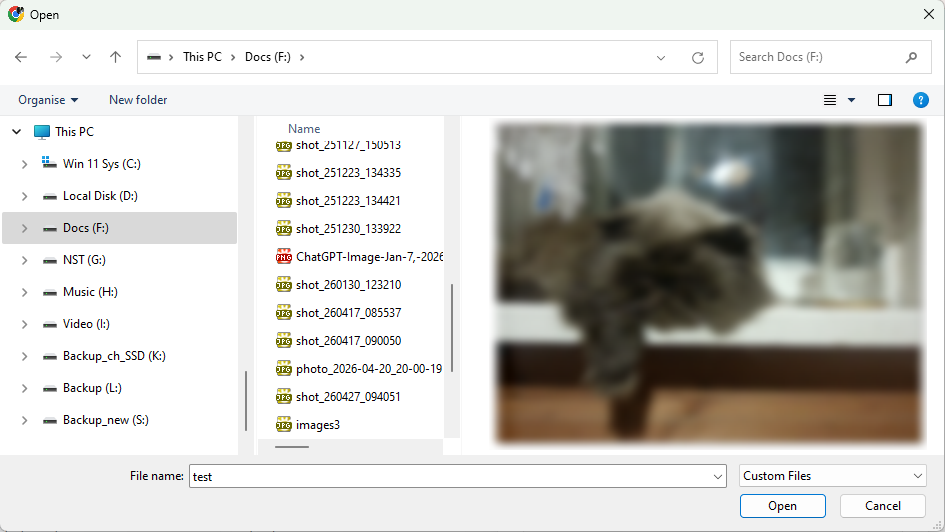
I click Open to upload the image.
Next, I scroll down the screen and see the sections Photo, Metadata, and Summary.
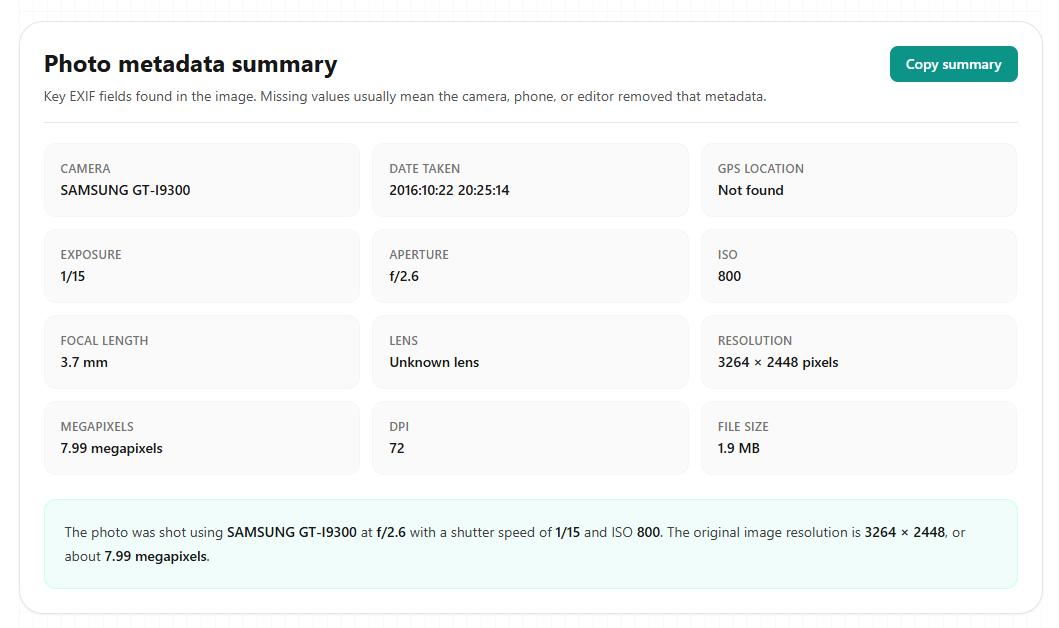
This is the easiest way to check photo metadata if you want to quickly understand what information is stored inside an image file.
What Photo Metadata You Can See
This section includes fields such as:
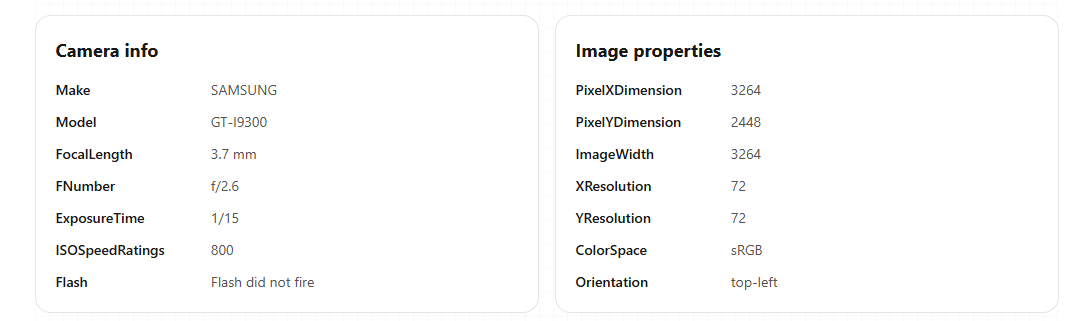
- camera — in my case, Samsung GT-i9300
- Date Taken — the date the photo was taken
- GPS Location
- Exposure — shutter speed and aperture
- ISO — light sensitivity
- camera specs
- focal length
- lens
- image resolution
- number of megapixels
- DPI
- file size
This all helps us see what metadata is available in the file. If you want to know how to pull metadata from a photo, how to find photo metadata, or how to get metadata from a photo, this section gives you the basic information right away.
If the photo contains coordinates, you can also use tools like the GPS Coordinates Converter to work with latitude and longitude values in a more convenient format.
Metadata Categories
The Exif Data Viewer service is convenient because there are no unnecessary fields: everything is clear, accessible, and neatly organized.
You can go to the Metadata Categories section to see the same information in a more structured format.
For example, there are sections such as:
- Camera Info
- Image Properties
- Date and Software
All of this lets you find out the technical details of the photo you uploaded via the service’s interface.
All EXIF Data
There is also a summary table called All Exif Data, where you can view all the metadata available in the file.
This is useful if you want to understand how to read photo metadata in more detail or check all available EXIF fields in one place.
If you are working specifically with location data from photos, you may also find the GPS Location Finder useful.
How to Search Inside Photo Metadata
The search function works as well: you can enter what you need into the search bar.
For example, you can type Resolution, and it will show the resolution. You can also search for Color, camera data, GPS data, or other available fields.
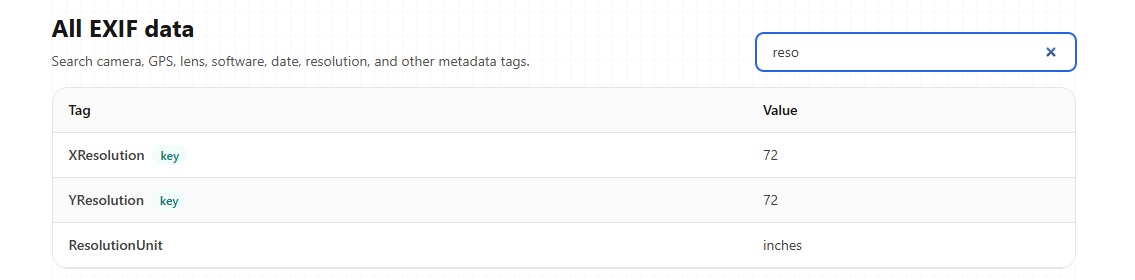
This makes it easier to look at photo metadata without scrolling through the full table manually.
Screenshot Metadata
Additionally, you can upload screenshots and view their metadata if necessary.
In many cases, screenshot metadata is more limited than metadata from a regular camera photo, but the service still helps you check what information is available in the file.
Overall, this service is particularly convenient for working with mobile photos. It is easy and convenient to upload mobile photos here and quickly check what metadata they contain.
If you often work with maps or GPS-related files, you can also check other tools in the GPS Tools section.
Removing Metadata from Photos
Among the service’s additional features is the ability to remove metadata.
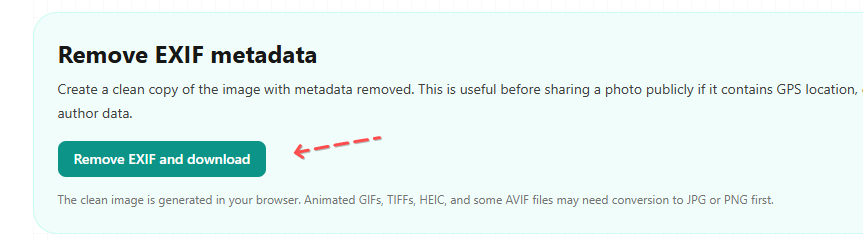
That is, if metadata is embedded in the file, you can easily remove it. This can be useful if you want to share an image but do not want to keep technical details, camera information, or location data inside the file.
FAQ and Copy Summary
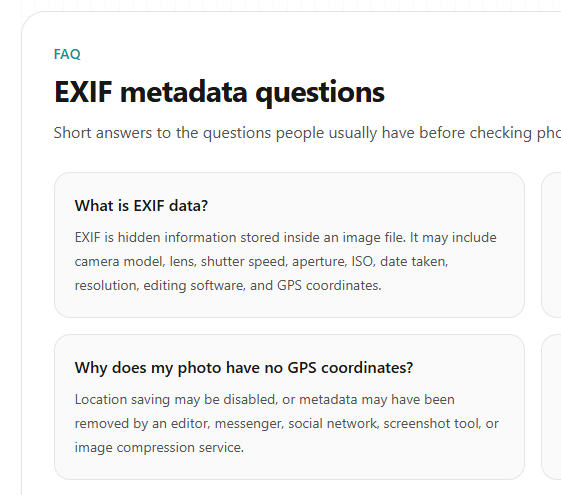
If you have any questions about using the service, please refer to the FAQ section. Answers to frequently asked questions are available there.
What else can I say? The service is completely free. You can upload as many photos as you like.
You can also copy all the information to a text file. To do this, simply click the Copy Summary button and use the Ctrl + V shortcut to paste it where you need it.
Final Thoughts
That’s all. I’ve briefly explained how to use this service to extract metadata from JPEG and PNG files, as well as screenshots.
If you need to understand how to get photo metadata, how to read metadata on photos, or how to see a photo’s metadata, the Exif Data Viewer gives you a simple way to do it directly in the browser.
If you have any questions, email me, and I’ll respond.
If you know of a better service, please share a link to it. That’s all — thanks for your attention.
Related guides
More useful articles from the GPS Coordinates, EXIF & Location Tools topic.
- How to get GPS coordinates from a photo. EXIF data location
How to find a location using the GPS coordinates of a photo, best apps to check where the photo was taken, how to manage GPS settings, disable saving location data
- Best GPS coordinates apps for Android and iPhone - 2023
The article provide useful GPS coordinate apps for Android and iOS devices. Find a location by coordinates by latitude / longitude. 10 best apps for checking GPS coordinates on map
- Download GPS Coordinates app for Android
GPS Coordinates app allows you to find a place by coordinates, calculate the coordinates of the selected location.
- GPS Compass Navigator app for Android
This mobile app helps to navigate via its small compass. It will also be useful while driving through cross-country terrain without roads and signs
MyGpsTools publishes practical guides about GPS apps, maps, navigation tools, satellite imagery, Android Auto, Apple CarPlay, ZIP code maps, and location-based technologies.